Showing posts with label Educational technology. Show all posts

Sunday, December 4, 2016

Before One Can Code, One Must Understand the Computer

"Is this the correct spot for the hard drive?"  No joke, phrases like that issued from my elementary students mouths this past week.  I was geeking out while students worked together to build pretend computers.  

The "My First Computer" activity came from the author of the book, Hello Ruby: Adventures in Coding by Linda Liukas.  The book focuses on a girl named Ruby who is a very independent and imaginative spirit.  For example, when she is told to get dressed, she puts her outfit over her pajamas because she was never told to take her pajamas off.  

Ruby's adventure begins when she receives a postcard from her father letting her know there are gems hidden around their neighborhood for her to find.  Ruby decides to make a plan which includes finding clues (which she does in her father's office) to make a map of where the gems are located.

Once Ruby begins her adventure--she meets penguins, foxes, a snow leopard, robots, and Django with his pet Python.  Ruby's planning and hunt for the gems teach skills related to coding--breaking big problems into small ones, sequencing, algorithm, looping, etc.  

The back of the book has quite the selection of activities to help kids practice computational thinking.  

Back to the "My First Computer" activity...I adapted this for multiple classes by printing out only enough color copies for students to work in pairs.  The pieces were laminated and cut out so that they could be reused.  Students used tacky putty to place items together and that made it easy to remove them.  

The students LOVED this activity and some were disappointed that they didn't get to take the computer home.  Once I told them that they could visit the Hello Ruby website they were so excited!

Sunday, February 7, 2016

Elementary Content Based Websites

There will be many times when I run across a website that is brilliant to use in the classroom, but not always the best choice for library since I'm limited on time (and the content I can teach).  I have a Pinterest board with all educational technology ideas.  It didn't really work for me after awhile because it had a mix of teacher and student websites.  So, I decided to pull out the student websites and make them their own board.  I thought I'd share that board because I would like classroom teachers to be able to use these with students.


Monday, December 21, 2015

Revisiting Hour of Code™

"Ms. Ehll, I went home and coded last night!"  This makes me so HAPPY that my students participated in Hour of Code for Computer Science Education Week  (December 7th-13th)!  My previous post talked about my students visiting sites, such as Code.org, and following self-directed tutorials.  

I expected a high degree of engagement and they were more than willing to abide.  (It might have helped that I mentioned how President Obama learned a line of code...) They were very focused on trying to understand how to code and even those who struggled would ask for help or ask if I could direct them to a simpler coding program.

Benefits from this week of code:
1. Engagement
2. Exposure to computer science/coding language
3. Perseverance with new concept
4. Collaboration...helping each other and paired programming (two work on same code)
5. Excitement (word spread about what was happening in library)
6. Beyond the classroom extension

The wheels are a churnin' in my head about how this Hour of Code initiative can be expanded upon next year...

Sunday, December 6, 2015

Hour of Code™ December 7th-13th


My 2nd-5th grade students are taking over the computer lab this week during their library time!  Why?  For the Hour of Code™!  What is the Hour of Code™ you ask?  


“The 'Hour of Code™' is a nationwide initiative by Computer Science Education Week and Code.org to introduce millions of students to one hour of computer science and computer programming.”

Students have many options that day.  The choices might seem overwhelming, so here is the way I'm breaking it down:

Grade 2 will use Kodable or as some of my students call it the "fuzzy monster game".  Very easy to learn.  Older students who can't quite get the hang of other coding tutorials can use this on to start their journey.

Grade 3 will use Code.org to choose tutorial of interest: Star Wars, Minecraft, Angry Birds, etc.  These are multi-level self-guided lessons.

Grade 4 and 5 will use Code.org, Tynker, or Scratch.  Code.org can actually guide your students to the other sites if they scroll down to "Partner Tutorials for Grades K-8".

And to top off my students week, they are all getting a certificate for completing their Hour of Code™.

Next week, the results of Hour of Code™ week at my school.

Sunday, February 16, 2014

Black History Month Webquest

This past Friday, I knew I HAD to keep the students engaged...it was our first full week of school without any snow days, it was Valentine's Day and did I mention it was Friday?!  A last minute idea formed and suddenly, I knew the students should complete a Black History Month WebQuest.  I had already gathered websites beforehand (to help the 3rd gr with their black hero research) and bookmarked them on my Only2Clicks, which you can view here.  *There are more sites than on the webquest because I wanted them to browse this page during centers week.

Typically, I've created WebQuests that are made completely online where you ask students to visit a site, they read the content, and answer questions or explore topics by following links all in one place.  This time, students in grades 3-5 are introduced to this concept via a worksheet I created to visit the bookmarking site and follow links to answer questions or view videos.  They were directed to learn more about the Harlem Renaissance, children's book authors and illustrators, influential sports figures (website works best on Google Chrome), inventors, and a choose your own path version of the Underground Railroad.  

My students have to get used to the idea of navigating several websites to find answers to questions. After their interest in this activity, I've decided to begin brainstorming more WebQuests.  I think one of the next ones I create will involve the skill of gathering information on the same topic from several forms of visual media online--text, video, and picture (ala Common Core).

I'm working on a modified version of the sheet I'm sharing with you so that 2nd graders can complete the webquest, too.  

Image courtesy of supakitmod/freedigitalphotos.net

Sunday, January 26, 2014

Come Listen To This Book!

I've been listening to audiobooks on the way to work for about 2 1/2 years now.  This is a great way to stay up to date on books I'm considering purchasing for my school's library...also helps me to catch up on books I've been meaning to read--an endless task.  I have made it through 7 audiobooks this school year and just keep going back to the public library for more.  Listening to audiobooks on a consistent basis lets me realize what power they hold. Malcolm Gladwell's book, Outliers, was more authentic while listening to him read than had I just read the physical book.  Many nonfiction books are easier for me to listen to on audio then they are to read.  

The above combined with research I knew and have been reading about in regards to audiobooks in the classroom made me realize how essential I should make a listening center in my library.  This year, I set up 4 book CD's in the computer and prop the book up by the tower, so students could see their choices. This listening experience spans kindergarten-5th grade.  This past week, all the grades got to enjoy audio during centers.  Even the preschoolers listened to the audio of a book as a class while I turned the pages.  To them, it was a whole new way to listen to a story.
  
All grades listened to the books, Hot Rod Hamster by Cynthia Lord, Polar Bear Polar Bear What Do You Hear? by Bill Martin, Jr., Bear's Loose Tooth by Karma Wilson, and When I Woke Up I Was a Hippopotamus by Tom MacRae.  That's right, every grade listened to these picturebook audiobooks. My goal is to change the audiobooks once a month since they have library centers only twice a month (during weeks they checkout).  The offerings will only expand to older picturebooks and short story or poetry collections since they only have 8-12 minutes at the center.

Students will have a choice to listen to another audio once the current audio they have is done or fill out a review of the book they just finished.  These reviews will be hung up by the listening center for other students to read.  I'm not requiring them to do this because I want the listening/reading to be enjoyed and not another area where they have to fret about something to write out.

In addition, I purchased multi-headphone splitter for students to listen to the same book and I recommend doing this if you only have one or two electronic platforms to offer students to listen to audio. This type of splitter is available via this link.


"Headphones on books" image courtesy of renjith krishnan/freedigitalphotos.net

Wednesday, January 22, 2014

Ed Tech Series, Part 2

My district had professional development the Friday we were supposed to come back from winter break (we had a weeks worth of snow days after).  I was asked to present about technology.  There were so many topics that could be discussed, but I reigned myself in and stuck with educational websites to integrate into the classroom.  Being very selective is HARD when it comes to all the sites I want to share with teachers.  At the same time thinking, no one is going to show up to my presentation.

I prepared my presentation during break using Prezi.  Being the overacheiver that I am, I was giving my Prezi some pizzaz.  Since one of the resources I suggest to teachers is Prezi, I figured I should show them what it can do.  I edited the Prezi multiple times and became frustrated when one of my fancy tricks would NOT work.  But, whatever...that just meant I showed the teacher what ended up being a goldmine to them (that I'll talk about later).

I have learned several things along the way about presenting.  First, technology is intimidating to those who don't use it.  It took me years to wrap that around my techy brain.  Second, the time factor.  Yes, its hard to think of "when am I going to fit this in?" Also, you need time during the professional development to play around with the new information. Third, how do I start? Just dive right in.  If it blows up in your face, reevaluate or move on to something else...mistakes are proof your learning.

I categorized my presentation for teachers and gave real-life examples of how I used the sites.  I start small and only have one grade use a site or use the same site for multiple grades, but they all answer a question on the same page.  I take the time to create accounts for my students on sites I think they will benefit from and that they can use multiple times.  I let students explore certain sites before I begin teaching how to use content on the site.  Students are eager beavers when on the computer.

I'm giving the link to the bookmarking site that has let me curate a great amount of sites for students to use.  Whenever my students need to travel someplace specific, I tell them to go to our library's Only2Clicks page.  It's been my favorite site to use for these purposes.

Here is the link to my Prezi on educational websites, too.

Enjoy!  And if you have any questions, ask away!

Sunday, January 12, 2014

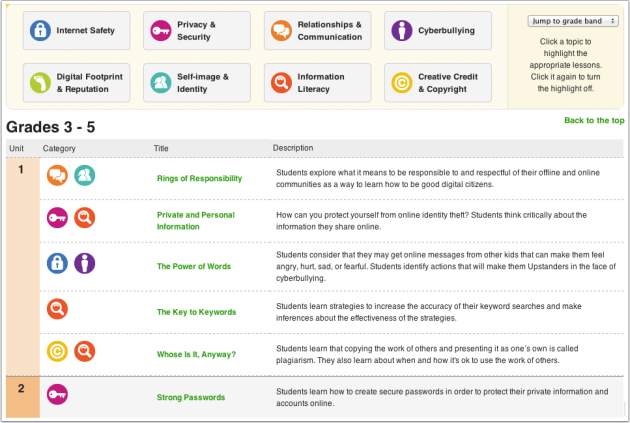
Common Sense Media's Scope and Sequence

My secret plan was to engage students in some type of digital literacy during the period between Thanksgiving break and winter break.  I felt sure this would keep them on task and cause less grief for all involved.  It was time to introduce my students to the beginning steps of becoming digital citizen.  Sad, but true, in today's age we have to teach our students to be safe online, just like in real life. 

This past summer, I took several workshops that involved introducing ways to have students become more digitally savvy.  One resource introduced was Common Sense Media.  If you don't know this site, you should.  Common Sense Media started as a place that reviewed movies, books, TV shows, and video games to help parents to decide if it was a good choice for their child.  Now, Common Sense has expanded to include a whole scope and sequence revolving around Digital Citizenhip. 


The offerings are impressive, covering grades K-5, including multiple topics and a newly added section for assessements.  I love that the lessons don't always deal with students going on the computer to learn.  They include an opening, 1-3 teaching parts, and a closing.  The lessons even involve having students cooperatively learning, getting out of their seats for work, and discussion questions (also great for exit ticket questions).

You can pick and choose the lessons you want to use which makes it easy to customize to your student population.  For my students, we went through lessons on staying safe online (K-1), a-b-c searching (1st), going places safely online and my creative works (2nd), and rings of responsibility (3-5).  3rd-5th grade also has accounts for Common Sense's Digital Passport, an online digital literacy platform (later post).

Saturday, August 10, 2013

Ed Tech Series, Part 1: Microsoft Tools

This is the first of several posts regarding the use of educational technology tools that I'm going to manage to coordinate into a mini blog series (hey, I can get fancy sometimes). that being said, I'm not guaranteeing they will all be in a row because when I get the urge, I sometimes just have to share something else.

This summer I took several professional development classes from the Learning Center of Cooperating School Districts. I consider myself an Ed tech geek, but know that to keep on top of my game, I need to keep learning (any other lifelong learners in the house?). I signed up for classes having to do with free Microsoft tools, digital literacy, and Common Core resources. These classes were some of the best PD I've taken.

Microsoft Partners in Learning is a great resource for educators. It gives one access to several tools well worth the time to introduce to students. One that students would find fascinating is WorldWide Telescope. It's similar to Google Earth, but it deals with the universe. Any student that loves space will dig this site. Any teacher educating students about the solar system, will want to utilize this resource. Equipped with photographic images, the user can explore the Milky Way as a whole or narrow in on a specific planet, moon, and so on. Information regarding the objects is presented, too.

One that all the educators in my group were impressed with was Mathematics 4.0. It shows students step by step how to solve mathematical equations! Not only generic ones, but ones they need help on. Some might see this as a handicap, but for students and teachers who really struggle, it would be beneficial. It also has features that allow students to self check, where the student could enter the equation and then the answer and click through to find out if they were right. This tool covers the gamut of subject areas that use math, from addition to chemistry.

Another tool I will be utilizing for my RtI students is Flashcards. The user can either find a digital set already made or make up their own with text and picture. One is then given options as how to proceed studying the Flashcards. The user can turn them from front to back or look at one side and then input what was on the other side of the card before flipping it. The cards go through a rotation several times to enable memorization. Once the user has got a card down pat it moves to a "done" pile to enable work on the ones that need more processing time. 

And the last tool I'll explain more thoroughly is AutoCollage. The user simply uploads photos to make a collage with and it does the rest with a click of a button.  Other options are available to make some photos more prominent than others, shrink or increase size, limit the number of photos wanted.

Other tools that are worth mentioning are OneNote, Math Worksheet Generator, and Skydrive. 

Have any of you used these tools in the classroom? Have tips you want to share? Bring on the comments!